Channels
Send email from your own domain
Verify your domain with DNS records so email replies and broadcasts leave from your own support address.
Add your domain under Sending domains in Settings → Email. Once dimmi verifies your DNS records, replies leave from your own domain instead of a forwarding address.
Each domain or subdomain verifies separately. If you send from help.acme.example, add and verify help.acme.example on its own.
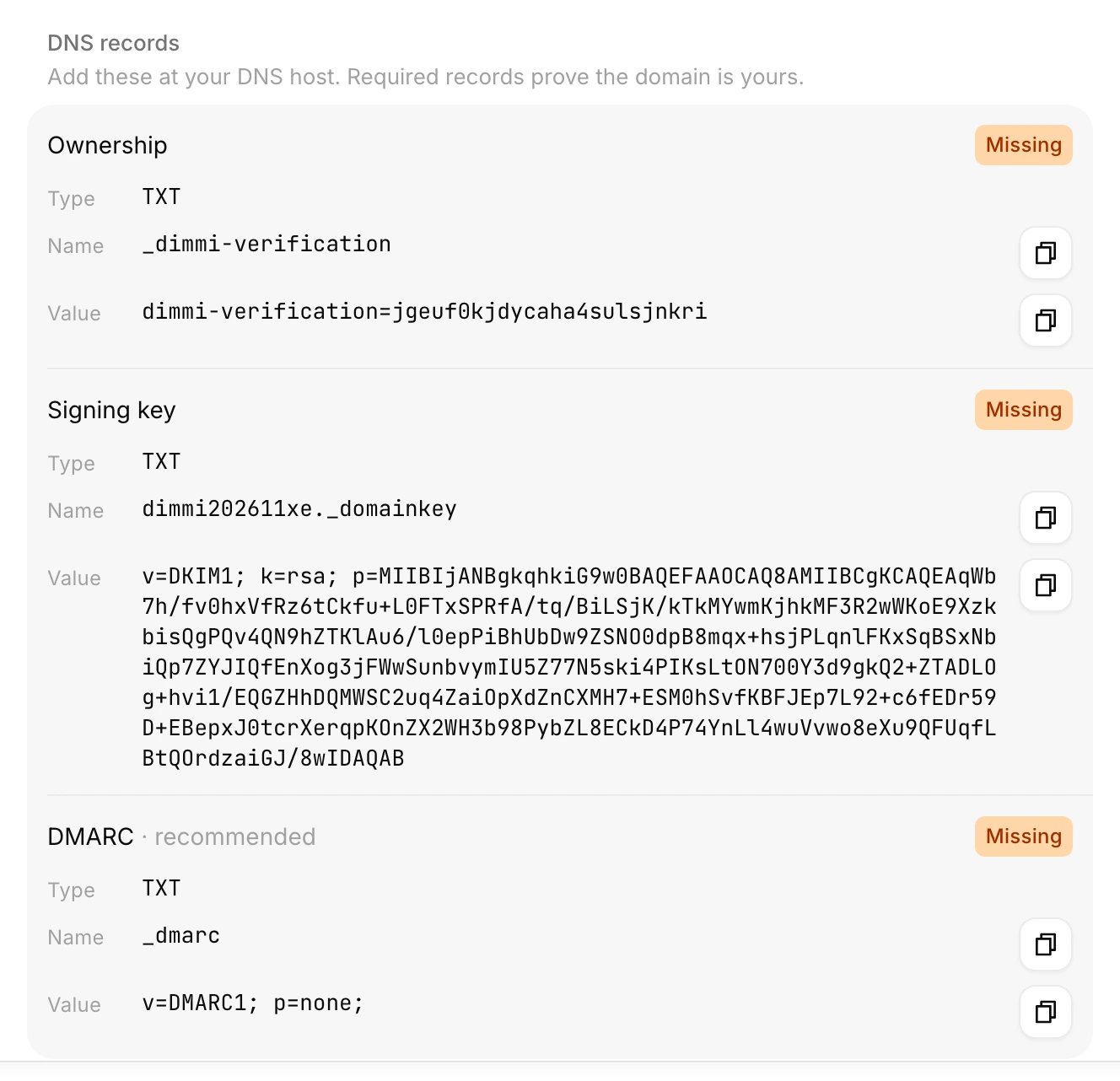
DNS records to add
Section titled “DNS records to add”Open your domain’s page to copy the exact values. On dimmi Cloud (which sends through Amazon SES), you will see:
| Record | Name | Why it is needed |
|---|---|---|
Ownership (TXT) |
_dimmi-verification |
Proves you own the domain so no other workspace can send as it. |
Signing key (3 CNAME records) |
<key>._domainkey |
Lets Amazon SES sign your mail with DKIM. |
Return path (MX) |
bounce |
Receives bounce reports on your domain. |
Return path SPF (TXT) |
bounce |
Authorizes the mail server to send for the bounce domain. |
DMARC (TXT) |
_dmarc |
Expected by Gmail, Yahoo, and Outlook for strong deliverability. |
Only the ownership and signing key records are required to pass verification. Adding the rest is strongly recommended.
On a self-hosted server, the records after ownership depend on your email provider. With an SMTP relay, dimmi signs mail itself and asks for one TXT signing key record.
Verification schedule
Section titled “Verification schedule”Click Check now after adding your records. dimmi checks every minute for 10 minutes, every 5 minutes for the first hour, every 15 minutes for the first day, and then once an hour.
If required records are still missing after 72 hours, the domain moves to Failed. Click Check now to start a new 72-hour check window.
If DNS records go missing later
Section titled “If DNS records go missing later”dimmi rechecks verified domains about once a day, switching to hourly checks if a check fails.
- Two failed checks in a row: status changes to Records missing, and replies temporarily fall back to your forwarding address until the next passing check.
- Seven days missing: status changes to Failed, and checks stop until you click Check now.
When bulk email pauses
Section titled “When bulk email pauses”Mailbox providers judge a sender by how often its mail bounces or gets reported as spam. Past a certain point they start filing everything from your domain as junk, replies included. dimmi stops that early by pausing the mail that causes it.
dimmi counts the customer email your workspace sends: replies, broadcasts, series, and rating emails. Once at least 100 went out in the last 7 days, bulk email pauses if either rate is passed:
| Rate | dimmi cloud | Self-hosted |
|---|---|---|
| Emails that bounced because the address doesn’t exist | 5% | Off until you set it |
| Emails reported as spam | 0.1% | Off until you set it |
- What stops: broadcasts, series, and rating emails. Broadcasts being sent pause where they are, and nobody on the list is skipped.
- What keeps going: replies to customers, from teammates and from the agent. Support never goes dark.
- Who hears about it: owners and admins get an email, and the audit log records the pause with the numbers.
- What is counted: bounce and spam reports that mailbox providers send back to your support address. Amazon SES, which dimmi cloud sends through, reports them to dimmi directly as well: every spam complaint, and every bounce it marks permanent. A report that arrives both ways counts once.
Resume sending
Section titled “Resume sending”Open Settings → Email. A notice at the top shows why sending paused. Clean the list you send to first, then an owner clicks Resume sending (email:resume_sending).
The count starts again from zero, so old bounces can’t pause you twice. Paused broadcasts stay paused until you resume each one from Broadcasts.
Rotate your DKIM key (self-hosted SMTP)
Section titled “Rotate your DKIM key (self-hosted SMTP)”Owners on a self-hosted SMTP relay can click Rotate key to roll signing keys without downtime. Other email providers handle key rotation for you.
Rotating adds a New signing key DNS record while the old key keeps signing until dimmi sees the new record live. Wait at least 1 week before removing the old _domainkey record.