Channels
Install the messenger
Add the dimmi messenger to your site with one script tag and open it from your own buttons.
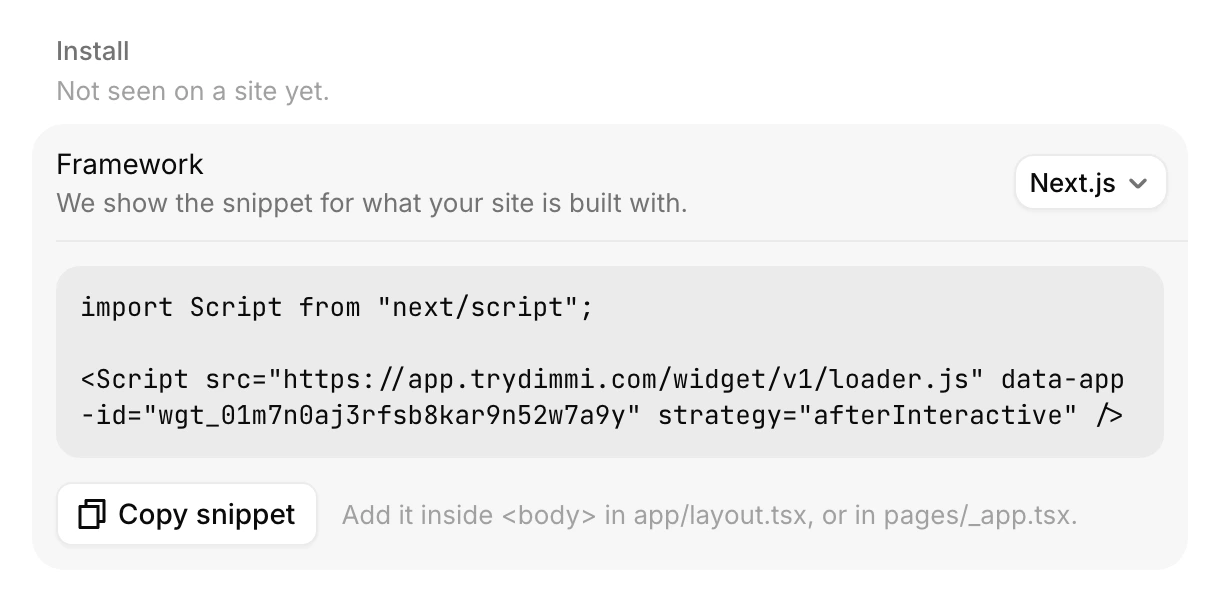
Open Settings → Messengers to copy the snippet for your messenger. Paste it right before the closing </body> tag on every page where you want chat to appear.
<script async src="<dimmi_url>/widget/v1/loader.js" data-app-id="<app_id>"></script>Your copied snippet already has <dimmi_url> (your dimmi URL) and <app_id> (that messenger’s ID) filled in.
- Web frameworks: using Next.js, React, Vue, Angular, or Svelte? See Add the messenger to your app.
- Content Security Policy: if your site uses a script nonce, add the same
nonceattribute to the script tag. See Content Security Policy for the messenger. - Multiple messengers: each workspace supports up to 10 messengers. Deleting a messenger stops its snippet everywhere.
Open the messenger from your own buttons
Section titled “Open the messenger from your own buttons”Add a data-dimmi attribute to any button or link to control the messenger on click. Supported values are open, close, and toggle.
<button type="button" data-dimmi="open">Contact us</button><a href="#" data-dimmi="toggle">Chat with Acme support</a>Need to control the messenger from JavaScript instead? Use the Messenger JavaScript API.